
Categories and product cards
Category page design
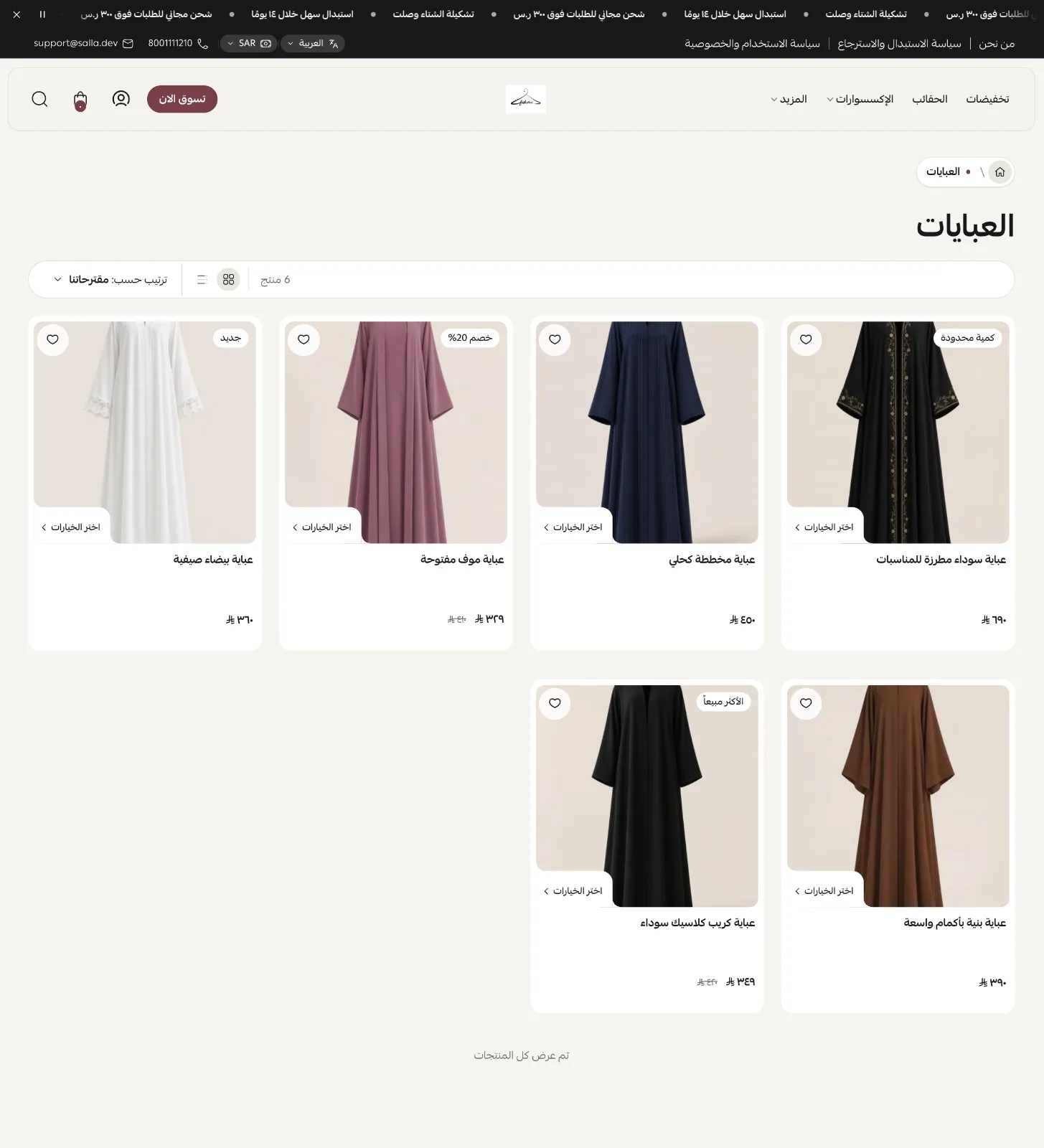
Section titled “Category page design”In the theme settings → Category pages («صفحات التصنيفات»), choose a ready design, and everything else is set to match it:
| Design | Suits |
|---|---|
| MOVA — Recommended («MOVA — الموصى به») | Most stores: clear filters, a comfortable grid, and a load more button. |
| Large catalogue («كتالوج كبير») | Stores with many products: filtering in a side bar. |
| Simple («بسيط») | Small stores: fewer details. |
And also:
- Show subcategories («إظهار التصنيفات الفرعية»): a bar under the category heading.
- Category image as a banner («صورة التصنيف كبانر»): use wide, high-quality images.
- Sort menu style («شكل قائمة الترتيب»): the usual one, or a popup menu with clear options.
- Products per row («عدد المنتجات في الصف»): for desktop and mobile, for category, search and sale pages.
Advanced filter customization (optional)
Section titled “Advanced filter customization (optional)”Leave it closed so the ready design does its job. Open it only if you want to change a detail:
- Filter display («طريقة عرض التصفية»): a wide panel or a side bar.
- Groups open at the start and Number of options before “Show more”.
- Quick access to filters and Load more (with a button, or automatically on scroll).
- Edit a specific group: such as changing how sizes look or the order of colours.
- Custom colour shades: the colour’s name in Arabic and English and its shade, if you want it shown as a colour circle.
Product card
Section titled “Product card”In the theme settings → Product cards («بطاقات المنتجات»). It applies to every product block on the home page, the categories and similar products.
| Setting | Options |
|---|---|
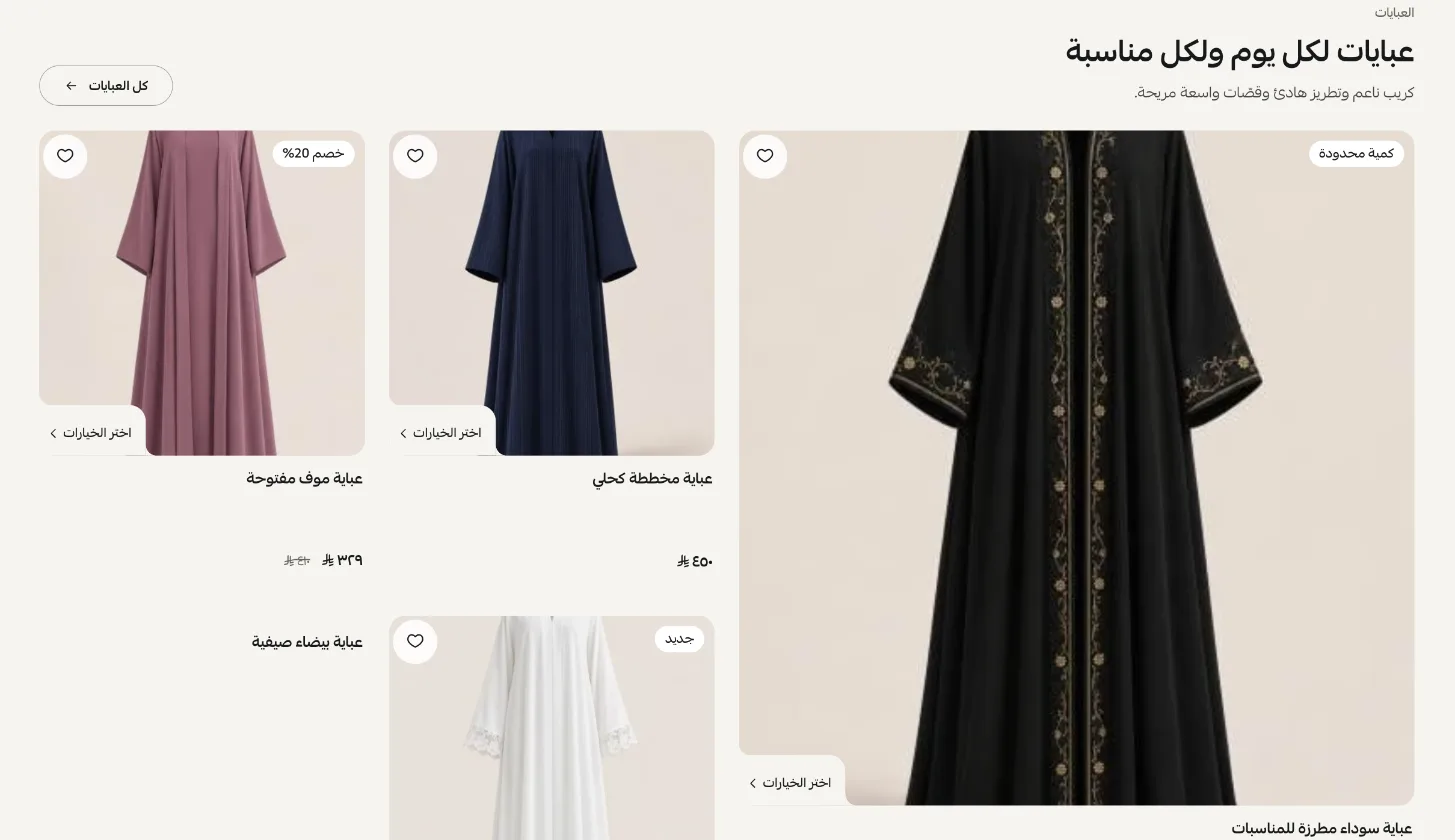
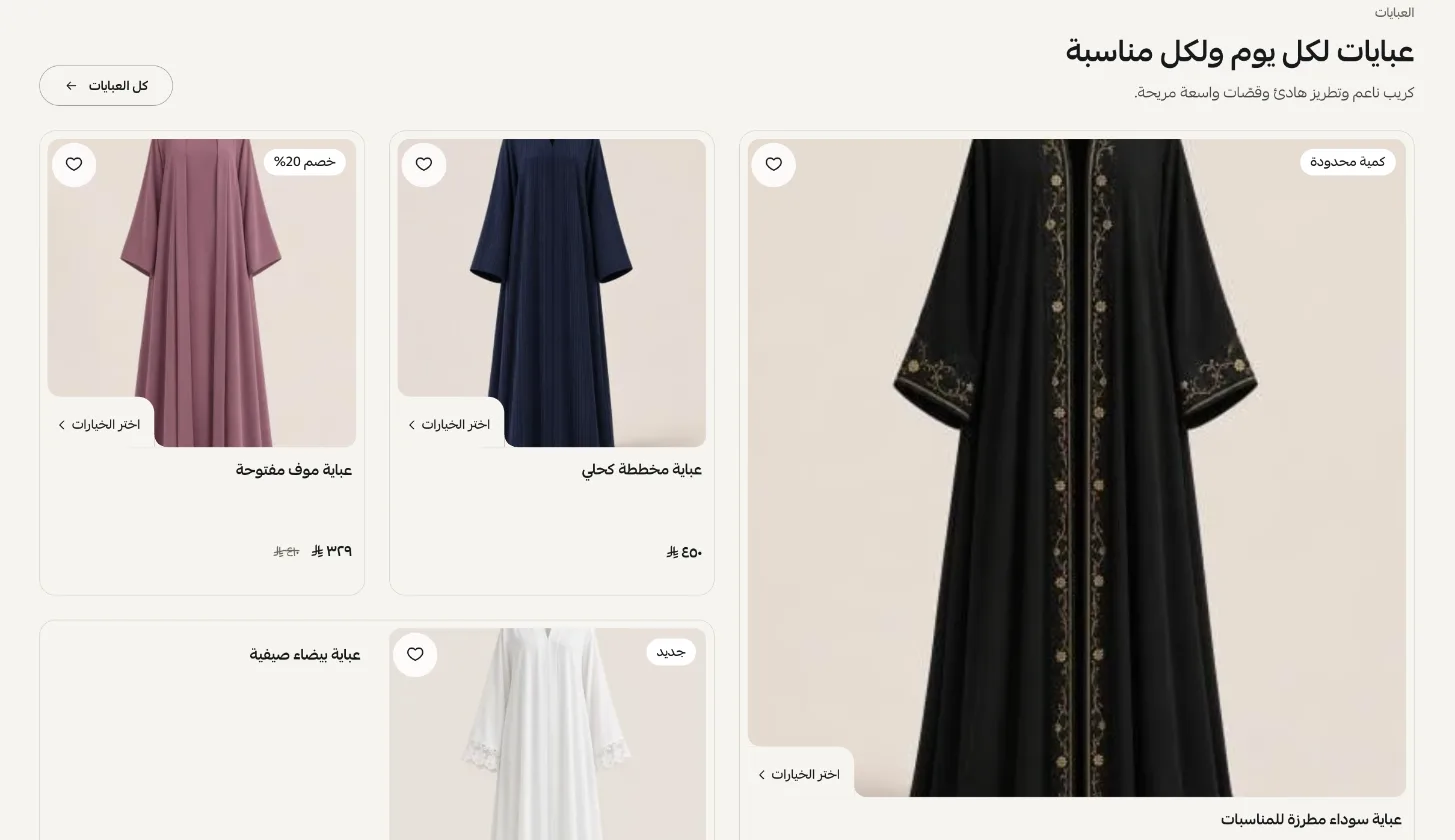
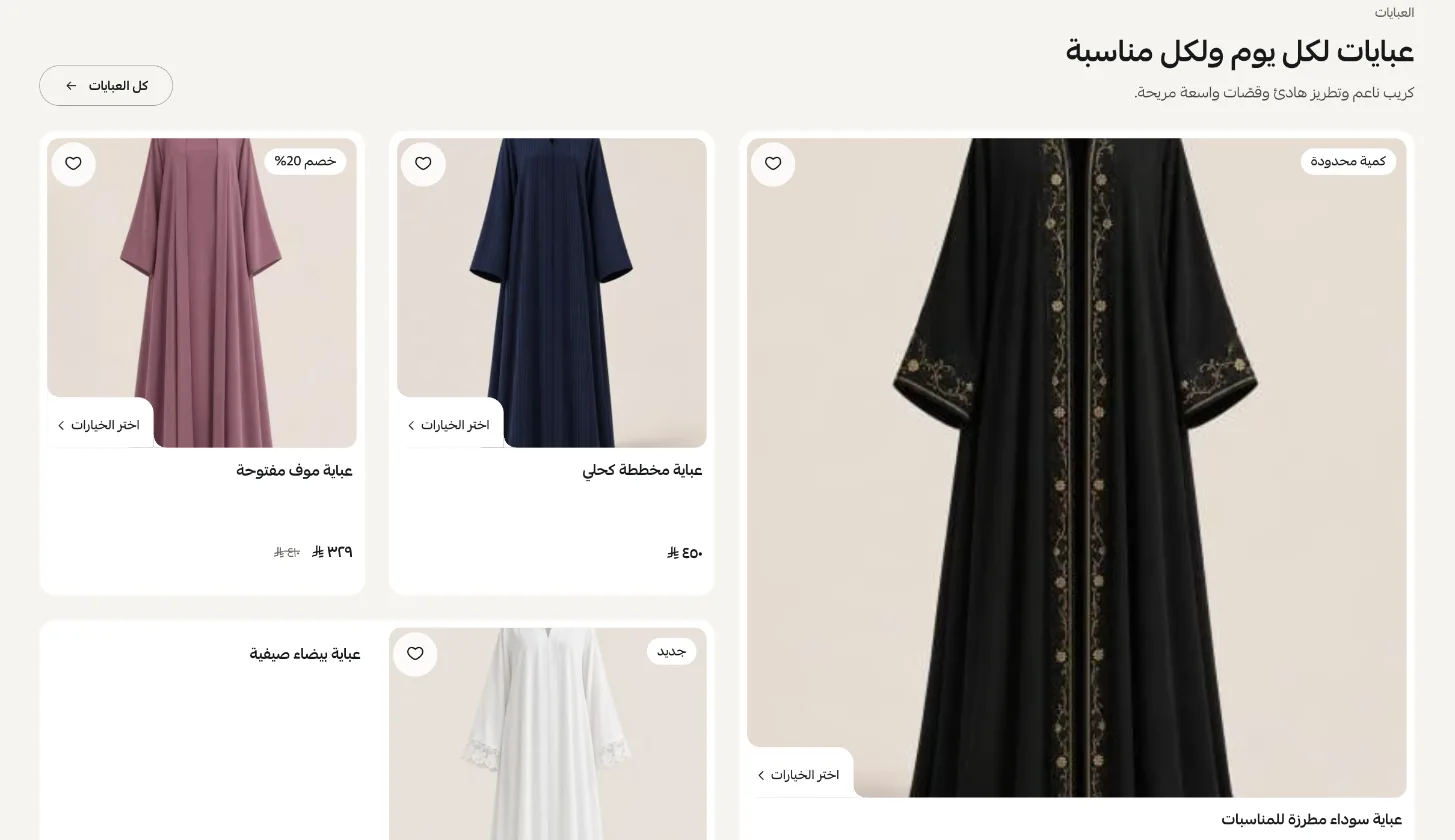
| Product display in the store («طريقة عرض المنتجات في المتجر») | Auto, horizontal row, grid, stepped columns, featured product with a grid, compact list, moving columns |
| Card look («مظهر البطاقة») | Calm with no border, with a thin border, on a raised surface |
| Product image ratio («نسبة صورة المنتج») | Square, landscape, portrait |
| Buy button («زر الشراء») | A round button in the image corner, or a full button at the bottom of the card |
| Offer badges («شارات العروض») | Merchant badge or discount percentage, merchant badge only, none |
| Discount percentage position («مكان نسبة الخصم») | On the image or next to the price |
And features you turn on or off:
- Second image on hover.
- Product video on the card: without sound, on hover or automatically.
- Quick view: the customer sees the product and its options and adds it to the cart in a popup, without leaving the page.
- Product options on the card: colours, images or sizes under the product name.
- Info line under the name: brand, free shipping, number of sales.
- Discount ending soon: in the last 7 days of the discount.
- Short description, rating, and the “Notify me when available” button for sold-out products.
Options popup
Section titled “Options popup”When the customer clicks “Choose options” on a product with options, MOVA opens a popup where they choose and add to the cart without leaving the page (or it opens the product page, if you prefer). On desktop it is a popup in the centre or a side panel, and on mobile it comes up from the bottom of the screen. You can control: the product image, the quantity, the note field, quick buy and Apple Pay, and what happens after adding.